
Over time, I’ve settled into a local project structure that separates organization, access and active work context into distinct layers, each serving a different purpose.
This didn’t come from a single design decision. It evolved gradually, based on what actually made day-to-day work easier, reduced friction and scaled over time. What follows is how that structure works today in hopes it may help you improve your workflow.
Layer 1: Canonical Project Storage
All files for a project live in a project-specific subdirectory on my Mac under: ~/Documents/Projects
This is the authoritative location for everything related to a project. They may be grouped by domain when that helps, such as all hosting related work under ~/Documents/Projects/Hosting/ and all WordPress development under ~/Documents/Projects/WordPress/, with various subdirectory hierarchies within there as needed. Ultimately, each project has its own directory, using clear, title-case naming intended for use in Finder and with native macOS applications.
A typical WordPress plugin project might look like this:
WordPress/
└── Plugins/
    └── Cocktail Recipes/
        ├── Docs/
        ├── Images/
        └── Code/
For most of my projects, I check out git repositories into a Code directory. When there are multiple git projects checked out, I’ll use names such as Website or Admin Console. For projects where only a couple of *.md files exist, I may keep them in the project directory rather than introducing a dedicated Docs directory.
I also will put other directories under a group to help me organize all files related to it, and not all will be development projects. Under ~/Documents/Projects/WordPress, I have subdirectories for Plugins, Templates and Tools, but I also have Docs and Images directories for general WordPress related info, notes and images. My Hosting directory has many subdirectories and some contain various spreadsheets, PDFs and other non-code files that all relate to hosting operations.
Key characteristics of this layer:
- Optimized for organization and structure
- Designed for use in Finder, not the terminal
- Backed up automatically via iCloud
- Code, documentation and assets live together
- Project directories are containers, not just git checkouts
- Title-cased names with spacing for clarity and discoverability
This layer prioritizes clarity and permanence over convenience.
Layer 2: Terminal-Friendly Access
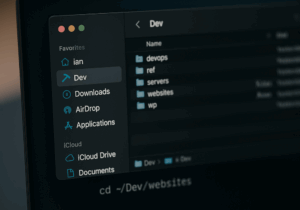
For day-to-day work in the terminal, I use a separate directory: ~/Dev
This is a long-standing convention I’ve used for years, predating my switch to macOS. The goal is simple: fast access to code without long paths, spaces or special characters.
For example:
~/Dev/wp/cocktail-recipes --> ~/Documents/Projects/WordPress/Plugins/Cocktail Recipes/Code
The entries under ~/Dev are subdirectories and symlinks pointing to the actual directories that hold code or other files commonly needed from the console. I do not need symlinks to all subdirectories for a project; only those where we need quick access, which is most often the code itself. There is even a ~/Dev/devops directory that links to local system components such as Apache, MariaDB, Redis, PHP and log files. This keeps operational paths consistent and easy to reach.
Important points about this layer:
- It is not a mirror of the Projects directory
- Only directories useful from the command line are linked
- Paths are short, predictable and lowercase without spaces (except for
~/Devitself) - Clean paths for fast CLI navigation, and simple tooling and scripts
- Symlinks allow the on-disk organization to remain clean
- Decouples how things are stored from how they are accessed
This layer is optimized for speed and ergonomics, not structure.
Layer 3: Code Editor Workspace
The final layer is how I define working context in VS Code, my preferred code editor.
I use .code-workspace files to explicitly control:
- Which folders appear in the sidebar
- The order they appear in
- The labels used for each folder, typically title-cased
This allows each workspace to present exactly what matters for a given area of work.
Often, a workspace includes:
- One or more git projects
- Parent directories so local
*.mdfiles are visible - Selected documentation or support folders
- Less frequently used folders pushed to the bottom
While these workspace entries often correspond to paths under ~/Dev, they don’t have to. The goal here is focus, not consistency with any specific directory layout.
This layer is optimized for attention and task context.
Summary of the Layers
| Layer | Purpose | Optimized For | Characteristics |
|---|---|---|---|
| Projects | Canonical storage | Organization, backup | Human-friendly names, full project context |
| Dev | Fast access | CLI ergonomics | Short paths, symlinks, selective exposure |
| VS Code Workspaces | Working context | Focus, clarity | Curated views, labels, ordering |
Each layer is tuned for its own use case, without trying to be everything at once.
Cross-Project Notes
Even with this structure, I kept running into a gap: not everything I work on belongs to a single project.
I often have:
- Open tasks unrelated to a single project, yet related to development work
- Scratch notes
- Ideas for future work and potential projects
- Notes, guides and reference info that span multiple projects
- Items that are still too vague to belong anywhere specific
I didn’t start with a rigid structure here. I just needed a place where notes could exist without being lost or misfiled.
For that, I added: ~/Documents/Projects/_Notes/
This directory is intentionally not project-specific. I use Docs for documentation belonging to a project, and _Notes for notes about my work that don’t belong to a single project. Technically, “docs” and “notes” could be seen as synonyms, but using this convention helps differentiate the roles each plays.
The underscore prefix for the directory name signals this is a special, cross-cutting directory, not a project. From a development perspective, it’s exposed via a symlink as ~/Dev/_notes, and when included in VS Code workspaces it’s typically labeled something like “Dev Notes” to make its role clear in context.
The contents are intentionally loose. Structure exists, but it emerged organically over time rather than being designed up front.
Closing Thoughts
This setup works because each layer has a clearly defined role:
- Projects are organized for humans and long-term clarity
- Dev paths are optimized for speed and muscle memory
- VS Code workspaces define focus
_Notesprovides a safe home for cross-project thinking
None of this is particularly complex, but the separation of concerns is what allows it to scale without becoming brittle. As with most things in development workflows, the goal isn’t perfection; it’s removing friction where it matters most.